How To Get Started With Affinity by Canva
Guys! It's Totally Free, No Subs, No Newsletter, Nothing. Go Get It!*

If you like to create your own images for your writing, or would love to be able to design your own professional paperback book cover, you’re in for an amazing treat. Affinity just democratized its workspace for everyone and it couldn’t be better news for indie writers!!

A big thank you to all the new readers and paid subscribers to The Understory: Love, Culture, Fiction. Welcome to my little corner of Substack!
So, I heard about this from David Gaughran in his recent newsletter and to use his words, it’s a bit of a ‘Hoo-hah’.
And he’s not kidding. I trust David totally. He is a true ally to indie authors. As a marketing and tech guy, he’s mainly focused on ways to leverage marketing on Facebook, but he also occasionally brings other great things to the table.
And this one is one of them.
Let’s get going.
What is Affinity and Why Should I Care?
Affinity is a graphic design tool that has been in competition with the ridiculously cumbersome and expensive Adobe’s Photoshop suite of tools for like, forever.
Mainly used by pro graphic designers, Affinity has been outside the creative reach of most writers alongside Adobe’s complex tools. Those of us who might want to make anything ‘graphicky’ have been forced to rely on the easier-to-use tools in Canva. But there were limitations to how far we can go.
Not anymore.
At the end of October this year, a big announcement came out from Canva. Affinity has put on its game face and totally kicked Adobe in the nuts with what they’ve developed since Canva bought them back in 2024.
They’ve made the entire suite of their tools FREE, like free free, forever to Canva users. And they’ve made it accessible to novices. That’s the part that’s got everyone buzzing. Now anyone can use professional graphic design software for free.
Want to make an image like the one above? Now, you can, without having to learn graphic design.
That means the only thing standing in your way to full creative freedom is choosing not to download the Affinity workspace into your Mac or Windows system. That’s it. Just one download. No subscriptions. Nothing.
The next part is up to you. If you are a novice to Affinity (like me), you’re going to face a learning curve but it’s so worth it. But, that’s okay. You also get a super helpful AI assistant called Ritson who slays at helping you figure out the parts where you are stuck. And you will be stuck, prepare for that, there’s just a lot of options and it can be bewildering at first.
If you ask Ritson ‘how do I make a new document’. Boom. Step-by-step instructions a three-year-old could follow. I did watch the intro tutorial but it is pretty fast and while it gives a great overview of the possibilities (which are unreal), getting to grips with the tools requires a bit of time using them. I found it most helpful to spend time adapting to the multitude of tools available to play with as you progress through whatever project you want to work on.
And there are many, many tools. Put it another way, if you can imagine it, there will be a way to make that a reality with Affinity.
So I decided to dig in with a rework of a 40-page guide I wrote back in 2023 about finding your voice as a writer which is visually pretty meh. I figured it would be a fun way to make it snazzy while simultaneously learning how to use the tool. I spent yesterday getting to grips with it and when I started to get the hang of things I was super happy with the results.
I’m looking forward to exploring much more, and will share the results when I am done redoing my guide, but I wanted to get this post out to you stat so you can start using Affinity, too!
So without further ado, if you are interested to access this amazing tool where you can make anything (including your own profession paperback book covers, hello!), you’ll want to settle in with a coffee and follow these step-by-step instructions to get Affinity for yourself.
Step-by-Step Guide to Get Affinity by Canva For Free
Step One:
If you don’t have a Canva account, you’ll need to create one*. You can get started here https://www.canva.com/
You do not need to have a paid subscription on Canva to access Affinity. You can have everything for free.
If you don’t already have a Canva account, you only need to set up a free account to unlock Affinity. Side note - a free account on Canva is usually plenty for most users, there’s a lot of value there on its own. (Disclosure: I use Canva Pro and have for years).
Step Two:
Sign in to your Canva account if you aren’t already signed in.
Then go to https://www.affinity.studio/
Click ‘Get Affinity’ button in top right hand corner
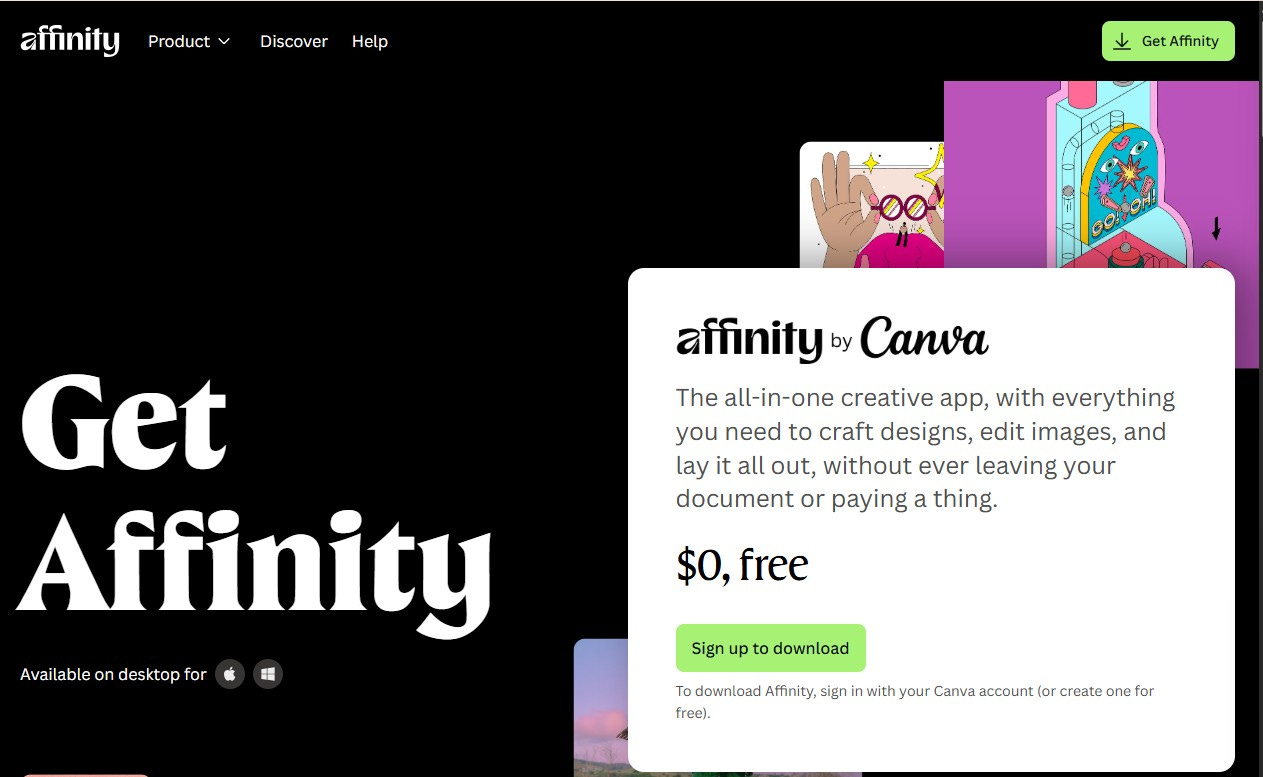
Click ‘Sign up to download’ button
On the Welcome to Affinity! window Click ‘Continue’ button to connect Affinity to your Canva account (or you can choose to sign in with another Canva account).
Download Affinity to your system (available to macOS and Windows)
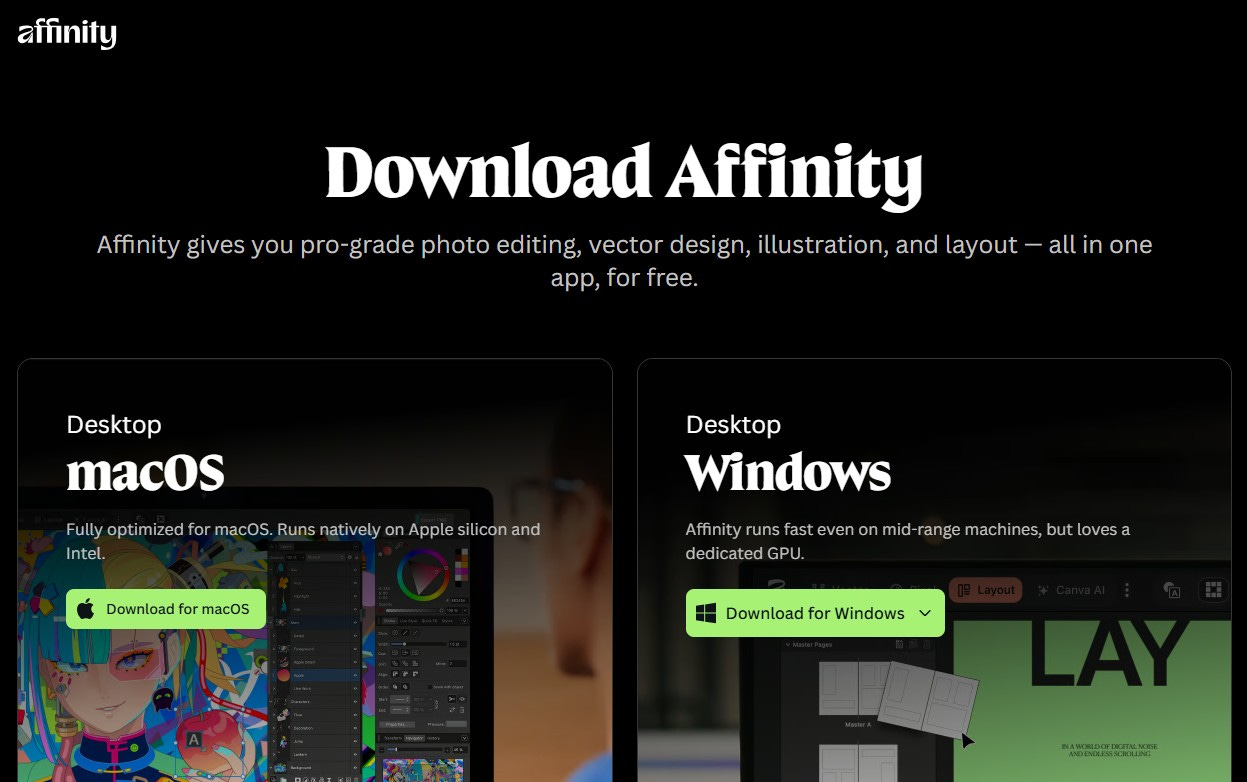
Play elevator music in your head while the software downloads. Took about 1 minute for it to download for me.
Step Three:
Open the downloads drop down list from your system’s (Mac or Windows) toolbar and and click the Open icon beside the file.
Click Install. Note: the Launch when ready button is ticked by default, if you want to disable that, do that before you click Install. I left mine ticked.
Once installed, you will get a new window with a button to Log in or sign up. Click that.
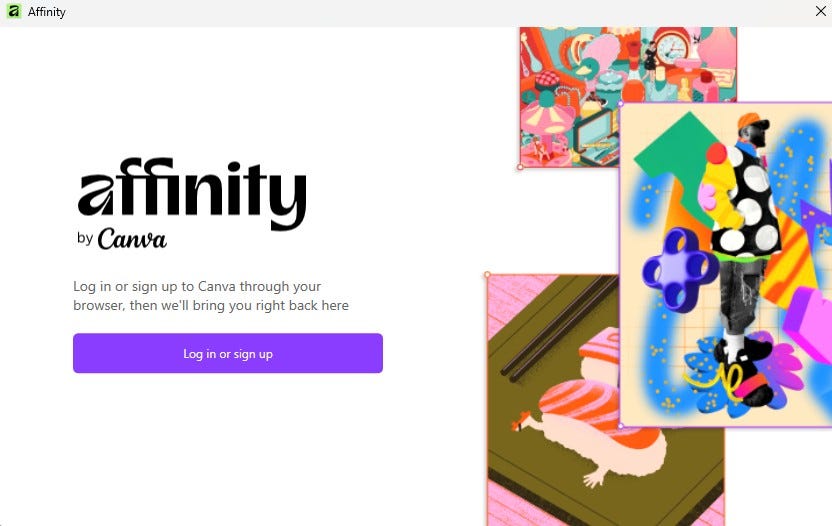
Click Continue (or you can switch to another Canva account if you’d rather use Affinity there)
Note: Your browser may display a system prompt asking if you want to open the app. Choose Allow or Open Affinity to continue
You’ll see that your sign-in was successful and you may close the window and get started with Affinity.
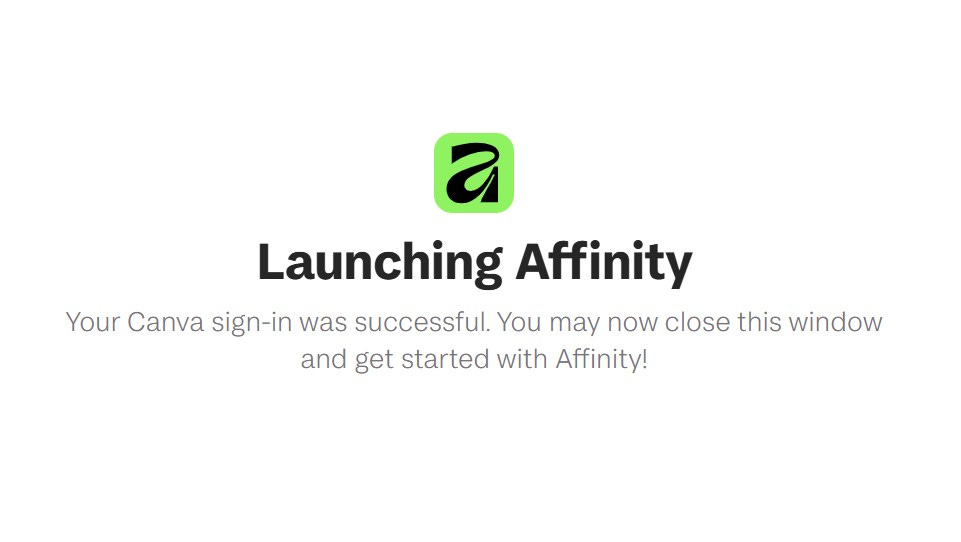
Close the window.
Step Four:
The Affinity workspace will be open automatically on your desktop. (It might load behind open windows so you might need to minimize them to see the workspace)
You can play the intro video or skip it. It’s not critical to watch it, it’s just a short video to show you a few of the amazing things you can do with Affinity.
Next: Choose if you wish to share your usage. I left mine unticked.
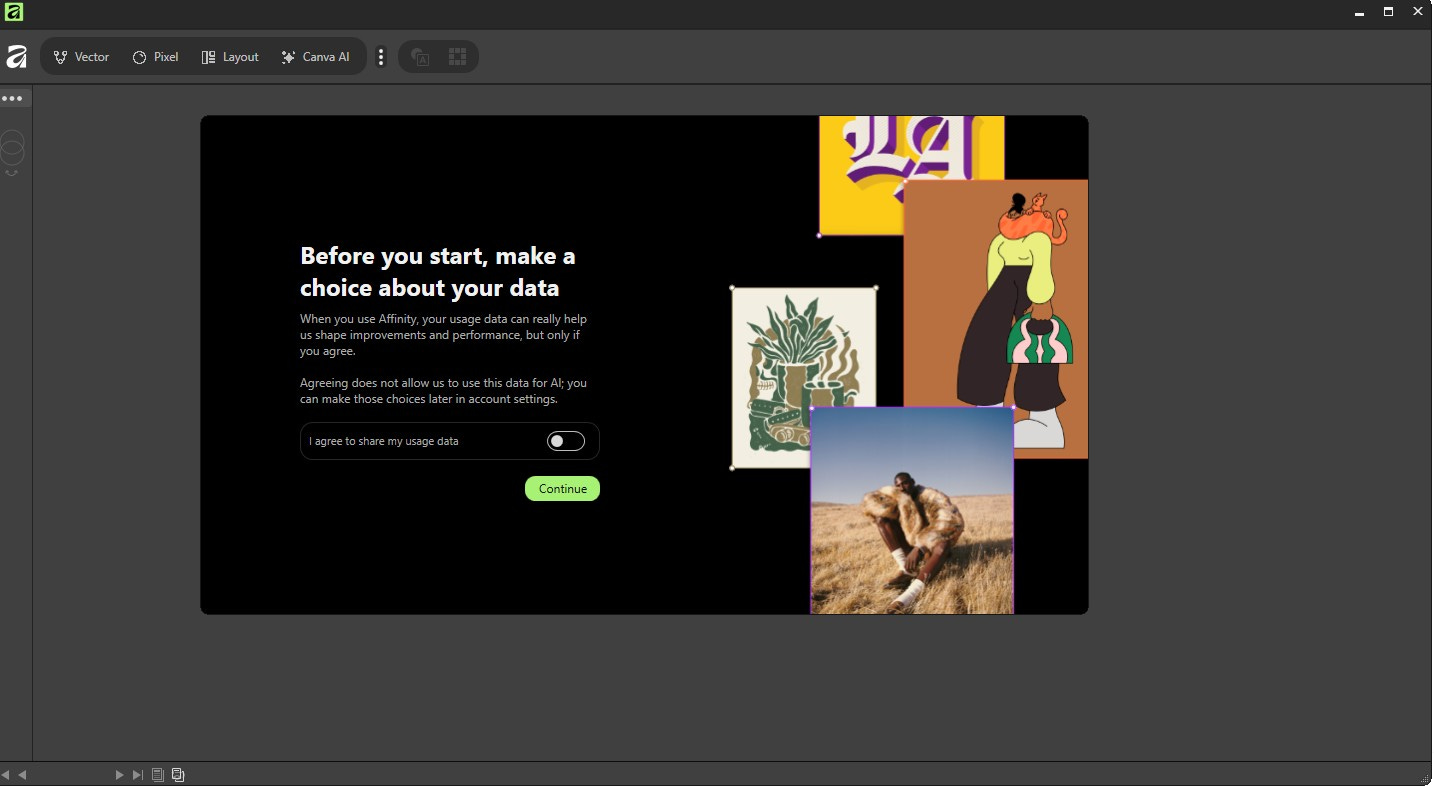
A tutorial pane then opens. You can choose to watch the tutorial if you are new to Affinity or go straight into creating if you know your way around things.
You are then sent to the Home page where you will see a selection of tutorials to watch on a variety of topics. You can also click the Learn tab to access these tutorials any time.
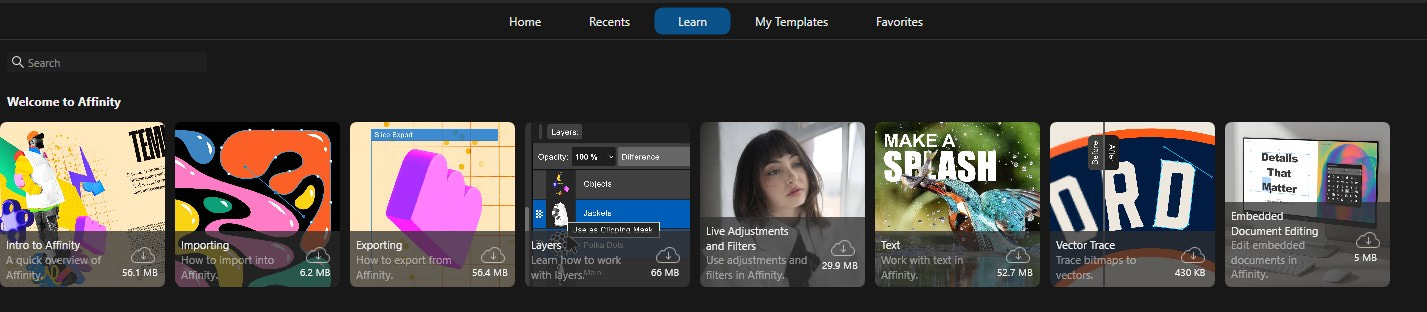
Click the Intro to Affinity (it takes a moment or two to load the workspace so don’t keep clicking the tutorial like I did because then you get a ton of them loded all at once - I think I had twelve ha)
When the workspace (finally) opens up it looks like this:
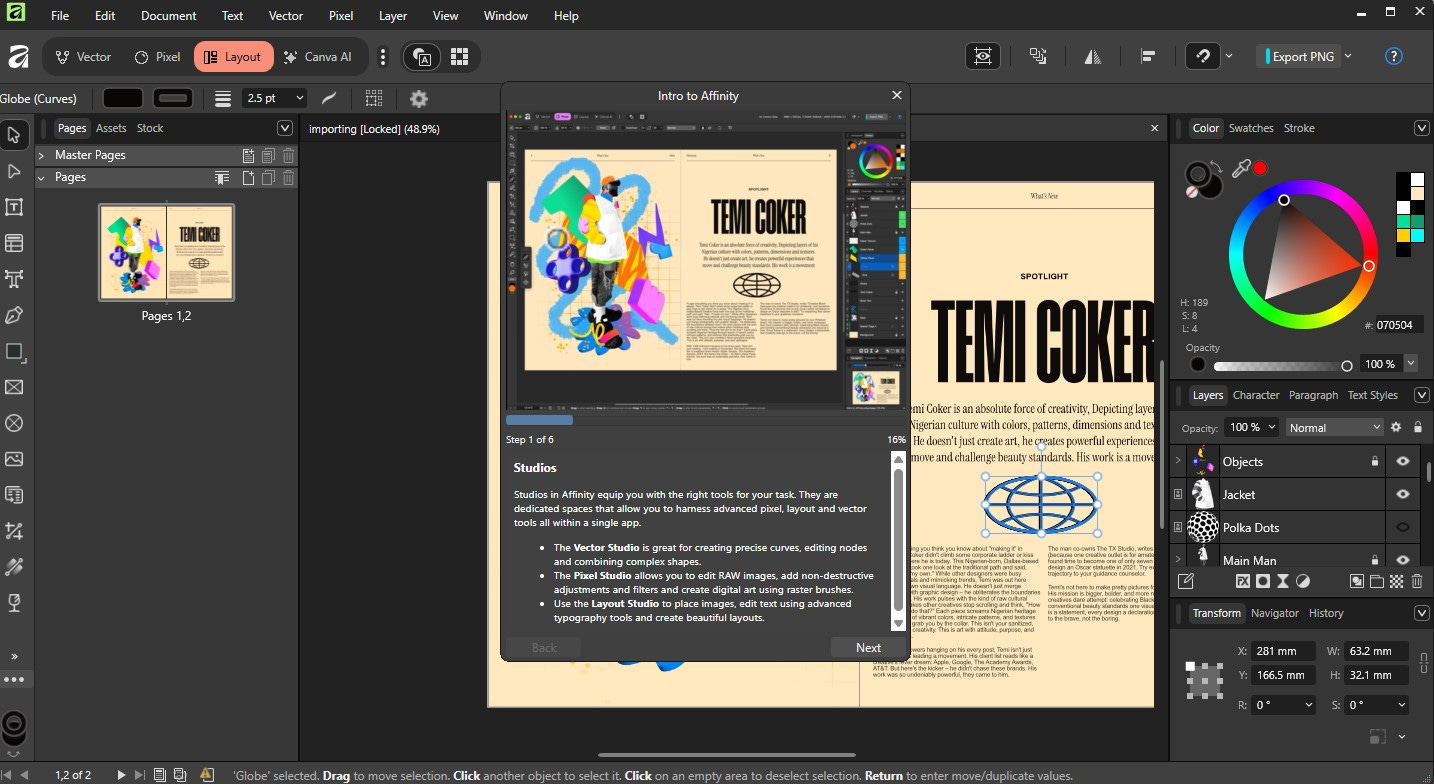
You can click forward and back through the steps of the tutorial.
Then it’s really up to you how much or little you want to use the tool. I found to avoid overwhelm to just think about one thing you want to do and experiment with it and learn as you go!
Also, if you need to talk to Ritson the AI assistant for help (highly recommend for new users) just click the little question mark in the top right corner. A new chat pane will open that floats over the app so you can move it around without having to close it while you work. I had Ritson with me constantly and it really helped me to learn the tools far faster.
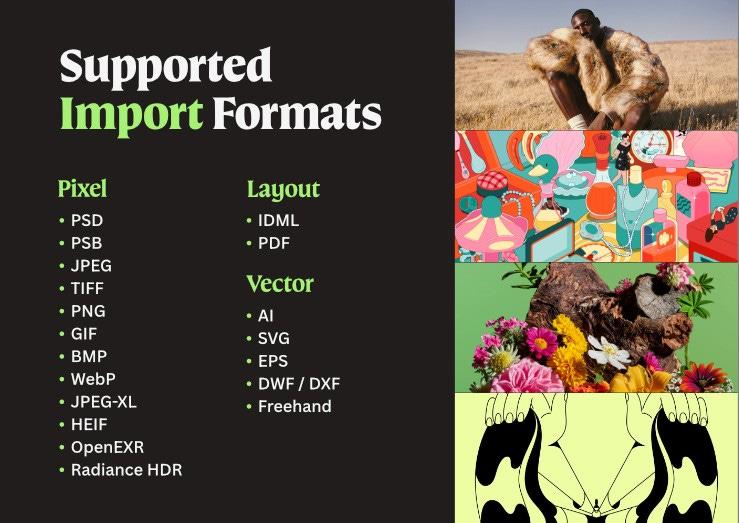
If you have files you want to import and work on without having to start over again, here are all the file formats you can import.
Happy creating!
Pro tip: Pin the Affinity icon into your taskbar so you have easy access to it. I had to search for it after I closed the app.
*This is not an affiliate post for Affinity or Canva. I don’t even think it’s possible to be an affiliate for Affinity which I actually love, because it means it’s pure value, and no take.